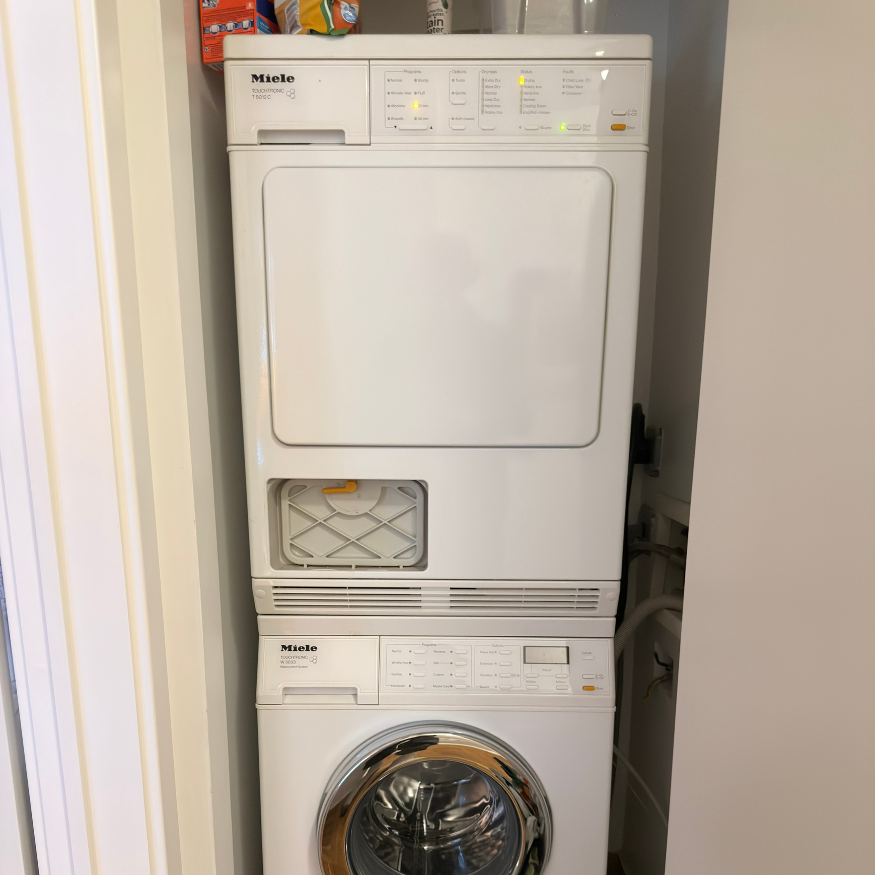
What noC Means on a Miele Dryer
Miele defines noC in the MobileStart context: Miele@home has not been set up, or the appliance is not receiving the Wi-Fi signal it needs. The fastest distinction is whether the dryer still works from its own controls.
- noC appears only with MobileStart and local programs run: The dryer can start and dry locally, so stay with the connection checks. This weakens a door, motor, heating, or general start-control diagnosis.
- Miele@home was never configured: Use the exact model's initial networking instructions. Do not assume the dryer is already registered because the app is installed on a phone.
- It worked before but noC now appears: Confirm that the home router's Wi-Fi is on, any repeater used near the laundry area is operating, and a usable signal reaches the dryer location.
- The router, network name, password, or home changed: After confirming the new network is healthy at the dryer, use the exact model procedure to reset the appliance's Wi-Fi configuration and connect it again.
- Con appears on the display: Miele uses Con as the successful connection state in the checked guidance. Stop changing settings and confirm operation in the Miele App.
- Local programs also fail to start: noC no longer explains the full complaint. Preserve the display and use the Miele dryer won't-start diagnosis for the local start sequence.
- Stop now: A burning or electrical odor, smoke, a breaker trip, visible damage, water near power, or abnormal mechanical behavior is not a normal connectivity symptom. Leave the appliance off and arrange safe diagnosis.
Official Miele@home Recovery Sequence
- Confirm setup status: Determine whether Miele@home was ever completed for this dryer and whether it previously appeared in the Miele App.
- Check the home network: Confirm that router Wi-Fi is enabled and that other devices can use the intended home network.
- Check repeaters: Restart or restore any repeater that normally supplies the laundry area, following the network equipment's instructions.
- Check signal where the dryer sits: Test the home network at the dryer location rather than beside the router.
- Preserve the current state: Photograph noC and record the exact point where setup or MobileStart fails before deleting or resetting anything.
- Re-network only when needed: If the network changed or the exact model procedure calls for it, reset the dryer's Wi-Fi configuration and add the appliance again according to its operating instructions.
- Confirm the exit condition: Stop when the dryer shows Con and the app recognizes the appliance. Do not continue cycling settings after connection succeeds.
What Not to Do
Do not publish screenshots that reveal a Wi-Fi name, password, pairing code, account email, or QR code. Do not repeatedly factory-reset the appliance, delete and recreate the account, or remove a working network configuration without recording the state first. Do not apply Bosch Home Connect steps, universal router-band recipes, or a generic security-setting change to a Miele@home dryer without exact model and network support.
Do not open the dryer, test a Wi-Fi module, probe wiring, or order a communication board from noC alone. The display first identifies a connection state, not the failed side of the phone-router-repeater-appliance chain.
When to Stop Repeating Setup
Stop the connection loop when the router and repeater are working, usable Wi-Fi reaches the dryer, and one exact-model reset and re-network attempt still never reaches Con. At that point preserve the app message, dryer display, model, network-change history, and failed setup stage for Miele@home support or appliance diagnosis.
What Diagnosis Must Confirm
An effective diagnosis should separate the failed communication stage before any appliance part is selected:
- Phone and app state: Confirm account sign-in, app visibility, permissions relevant to setup, and the exact error shown during discovery or pairing.
- Router and repeater path: Confirm that the intended network is available at the dryer and that the signal is not lost between access points.
- Appliance discovery and pairing: Verify whether the dryer enters the exact model's network setup state and whether the app can discover it.
- Stored network configuration: Determine whether old router credentials or an interrupted setup keep the appliance from reaching Con.
- Appliance communication hardware: Consider internal communication, wiring, or control only after the external network and model-correct pairing sequence are proved.
What to Record Before Support or Service
- Machine identity: Full dryer model and serial number.
- Display state: Photo of noC, Con, or any different message.
- Local operation: Whether a normal program starts from the dryer controls.
- Network history: Whether setup never worked, stopped after a router/password change, or failed after the appliance moved.
- Recovery result: Router and repeater state, signal at the dryer, the exact re-network step that failed, and the app message with private credentials hidden.